
How to use Oblion
Complete step-by-step guide to setting up sessions, proxies, and warm-up automation.
Oblion is a desktop application for Windows and macOS that lets you manage multiple WhatsApp Web sessions from a single interface. Each session runs in an isolated browser context, optionally behind its own proxy, with automated warm-up messaging to keep accounts healthy.
Pre-release note: Oblion is currently in early access. Join the waitlist to get notified of updates.
Installation
Download the correct installer for your OS from the link sent to your email after joining the waitlist.
Windows
- Run the
.exeinstaller and follow the setup wizard. - If Windows SmartScreen warns about an unrecognized app, click More info → Run anyway.
- Oblion will launch automatically after installation.
macOS
- Open the
.dmgfile and drag Oblion to your Applications folder. - On first launch, go to System Settings → Privacy & Security and click Open Anyway.
Oblion stores all session data locally. No data is sent to our servers.
System Requirements
- Windows 10/11 (64-bit) or macOS 12+
- Minimum 4 GB RAM (more sessions = more RAM)
- Stable internet connection
Adding WhatsApp Sessions
A session is one WhatsApp account running inside Oblion.
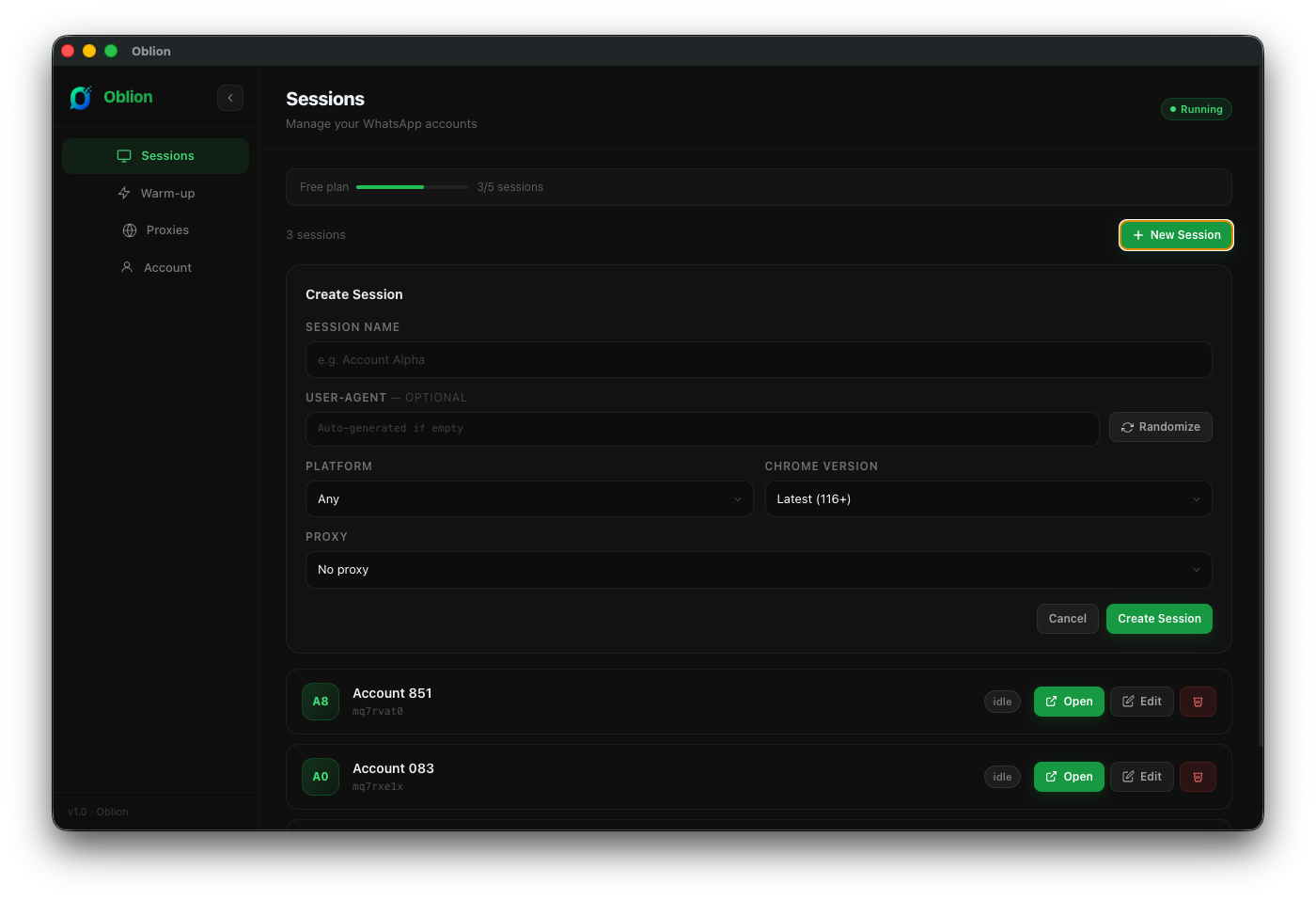
Create a new session
- Go to the Sessions tab in the sidebar.
- Click + New Session.
- Enter a session name, optionally assign a proxy, and set a User-Agent.
- Click Create Session.
QR Login
- Click Open on your session.
- A QR code modal will appear — scan it with WhatsApp on your phone.
- Go to Linked Devices → Link a Device and scan.
- Auth is saved locally — no re-scan needed on future launches.
If the QR expires before you scan it, close and re-click Open to generate a fresh QR.
Proxy Setup
Proxies give each session a different IP. Recommended if you run more than 2 sessions.
Supported formats
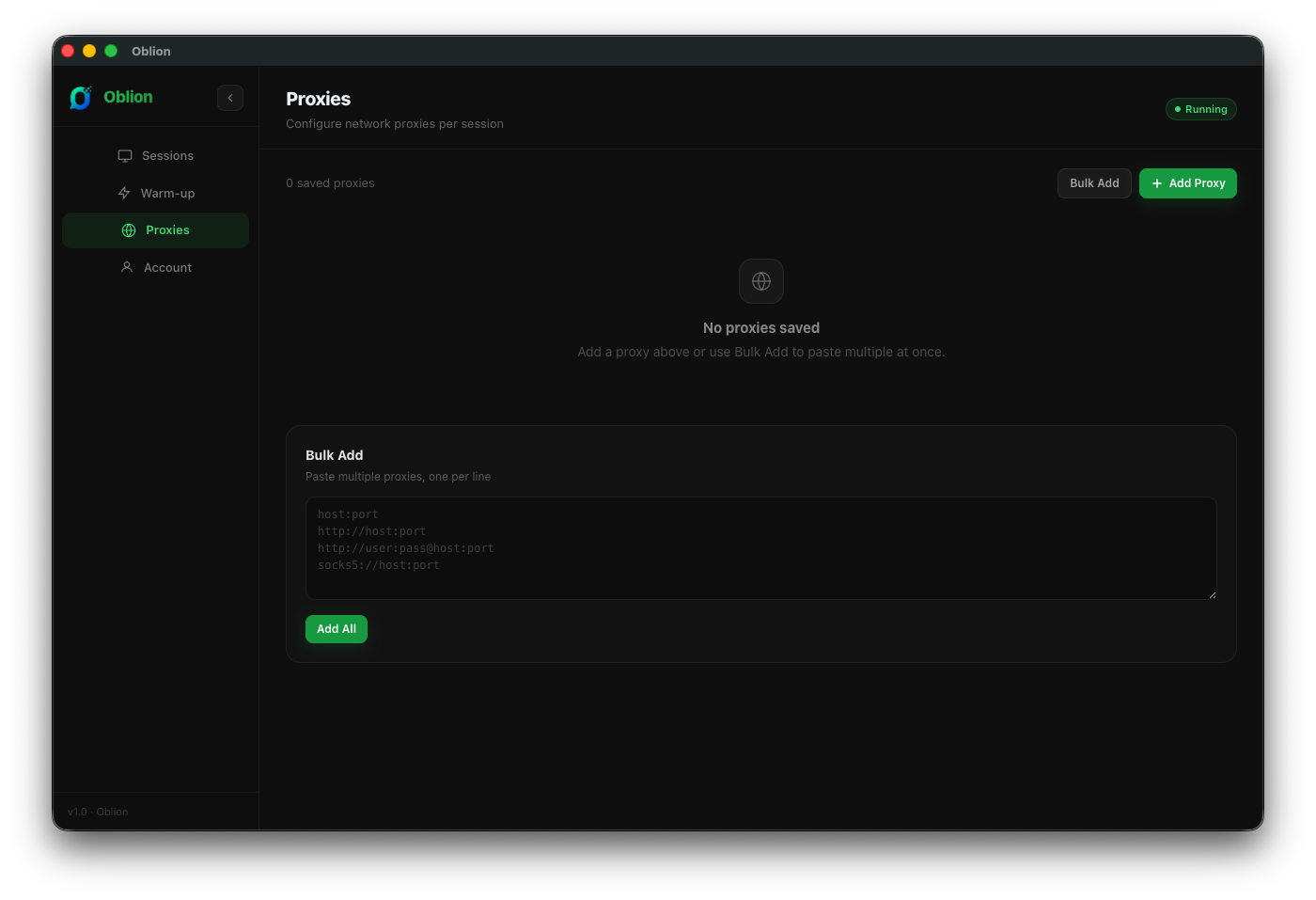
Add a proxy
- Go to Proxy Management in the sidebar.
- Click Add Proxy, fill in type, host, port, and optional auth.
- Use Bulk Add textarea to paste multiple proxies at once.
Proxy passwords are masked by default and never shown in plain text.
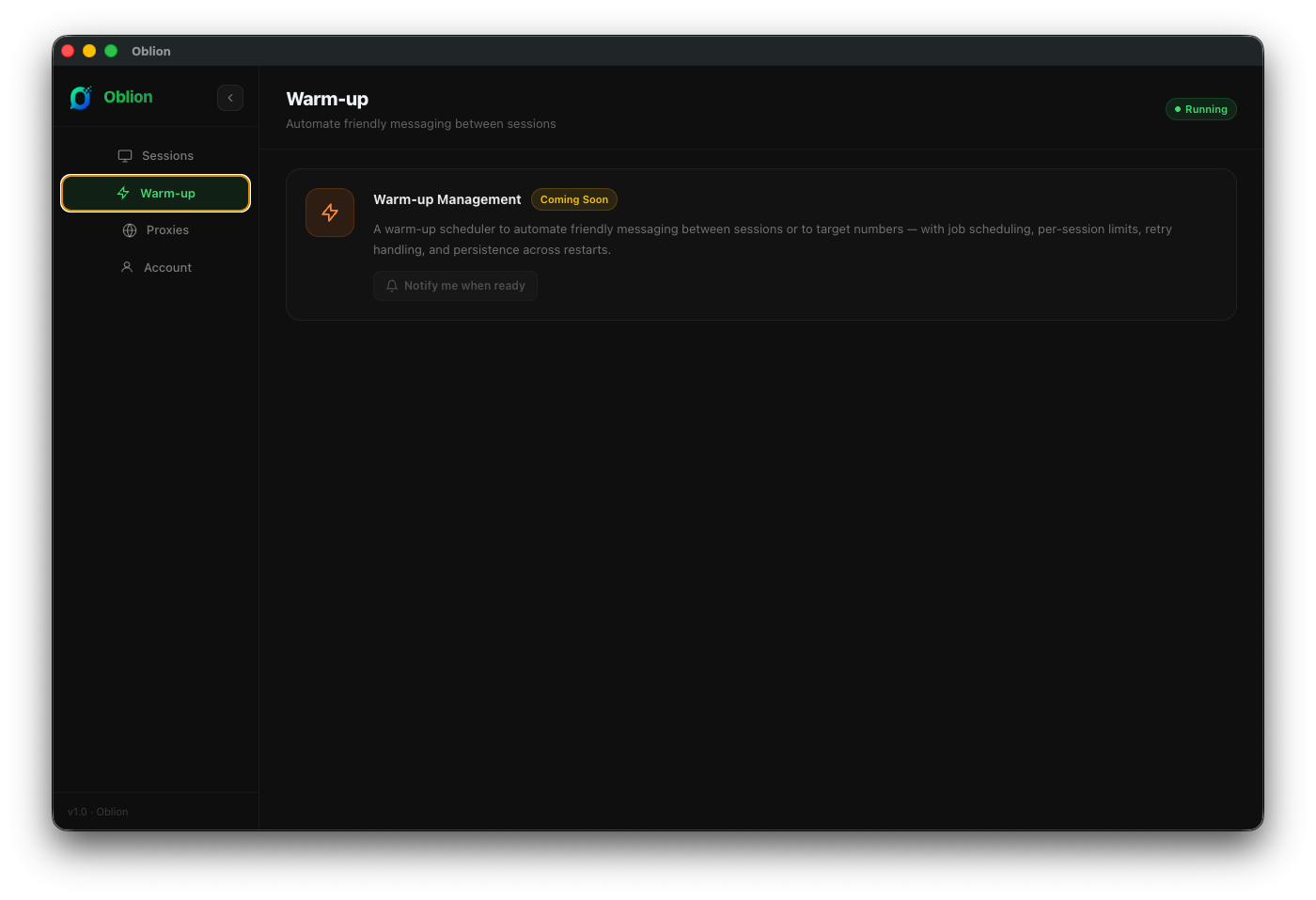
Configuring Warm-up Jobs
Warm-up sends automated messages between your accounts to simulate organic activity and build account trust.
Create a warm-up job
- Go to Warm-up Management.
- Select sessions to include.
- Choose mode: Between Sessions or Target Numbers.
- Set Interval (seconds between messages), Hourly limit, and Max retries.
- Toggle Persist across restarts if needed.
- Click Start.
Do not set intervals below 30 seconds. Aggressive messaging is the most common reason accounts get restricted.
Monitoring Sessions & Jobs
Oblion gives you real-time visibility across all sessions and warm-up jobs.
Job controls
- Pause — temporarily stops without clearing state
- Resume — continues from where it paused
- Stop — ends the job permanently
- Stop All — stops every running job at once
Tips & Best Practices
Always assign a unique proxy to each session. Sharing IPs is the fastest way to trigger a ban wave.
New accounts should start with 120–300s intervals and 5–10 messages/hour. Increase gradually over days.
Sending the same message repeatedly looks robotic. Use AI-generated or random messages for natural patterns.
Do not use Oblion for spam or any activity that violates WhatsApp's Terms of Service.
Ready to try it yourself?
Join the waitlist and get early access to Oblion — free during the beta phase.
Join the Waitlist →